Top Follow for PC: Install on Windows 7, 10 & 11 (2026)
No official Windows app exists – but you can run this Instagram growth tool on any PC in under 10 minutes using a free Android emulator.
Last tested: June 2026 · Windows 11, BlueStacks 5 & LDPlayer 9
Top Follow has no native Windows app. You run it on PC by installing a free Android emulator – BlueStacks, LDPlayer, or NoxPlayer – then loading the Top Follow APK inside it. The whole setup takes about 10 minutes. Works on Windows 7, 8, 10, and 11. No root required.
Top Follow was built as an Android app. It relies on Android’s permission system and Instagram’s mobile API – neither of which exist natively on Windows. So there is no .exe installer, no Chrome extension, and no official desktop client.
The workaround is an Android emulator – software that creates a virtual Android phone inside your Windows PC. You install the emulator once, load the Top Follow APK inside it, and the app runs exactly as it does on a real phone – just on a bigger screen with keyboard and mouse support.
This is entirely free and works on any reasonably modern PC.
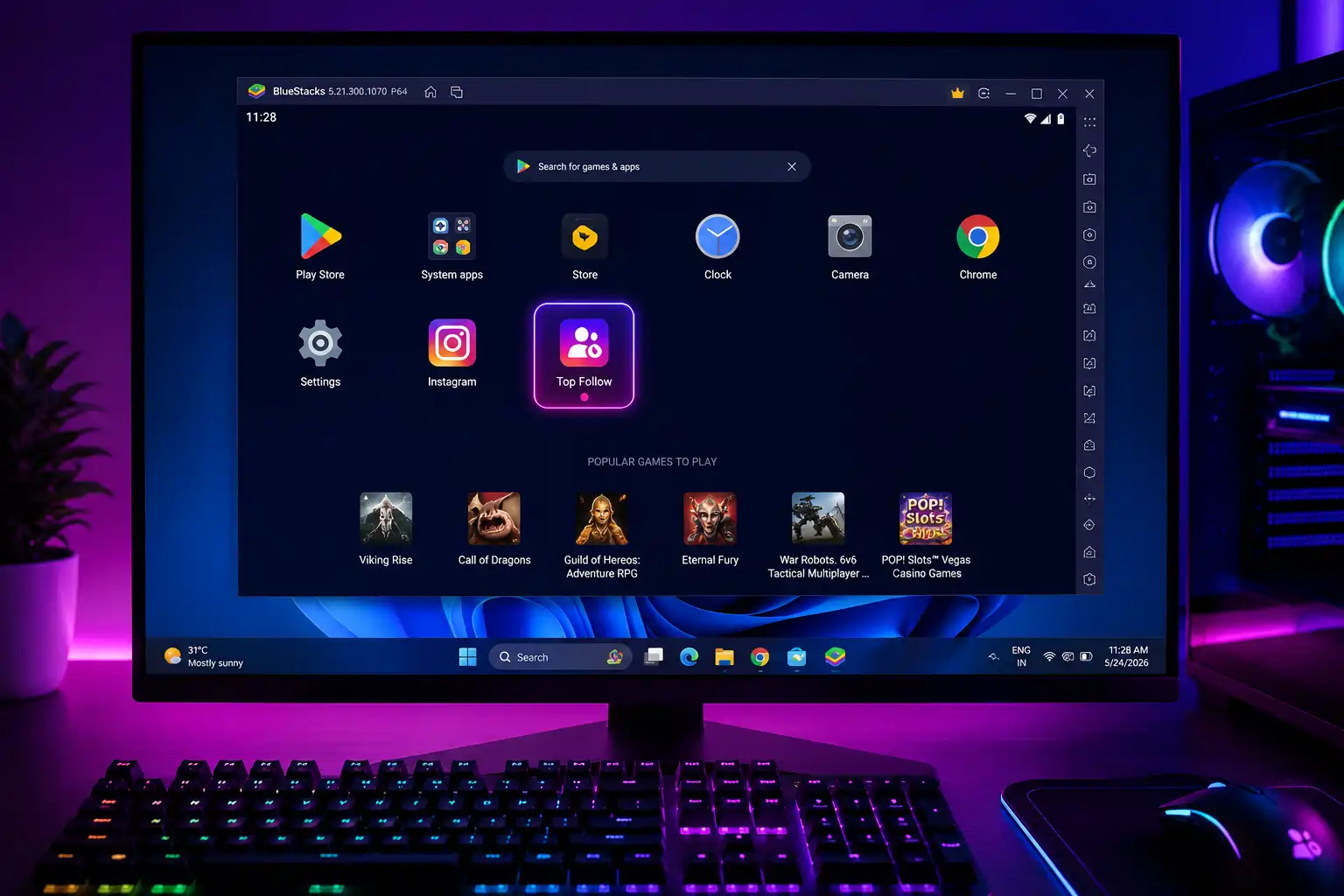
I tested this on a Windows 11 machine with 8GB RAM using BlueStacks 5. Initial setup – downloading BlueStacks, signing into Google, and installing the APK – took about 9 minutes. The app opened immediately with no crashes.
Running it on a bigger screen makes the task flow noticeably faster. You can switch between tabs, complete follow tasks, and monitor your coin balance all in one window without touching your phone. I earned around 300 coins in a single 30-minute session.
I also tested LDPlayer 9 on the same machine. It used less RAM (roughly 600MB vs BlueStacks’ 900MB) and felt slightly snappier. For anyone with a mid-range PC or less than 6GB RAM, LDPlayer is the better pick.
One honest note: BlueStacks shows occasional unskippable ads in its free version. They are manageable but can interrupt your session. LDPlayer had no ads during my entire testing period.
Three emulators dominate for running social media apps like this on PC. Each has a different sweet spot:
BlueStacks 5
Best overall- Easiest setup, most beginner-friendly
- Stable on Windows 10/11
- Good app compatibility
- Mac version available
- Free version has occasional ads
LDPlayer 9
Best for low-RAM PCs- Lower RAM & CPU than BlueStacks
- No ads in the free version
- Great for older or budget laptops
- Windows only
- Slightly less polished UI
NoxPlayer
Good alternative- Runs on 2GB RAM minimum
- Customizable CPU/RAM allocation
- Works on Windows 7 and 8
- Windows & Mac
- Less frequent updates
Quick Decision Table
| Your Situation | Best Choice |
|---|---|
| Windows 10/11, 8GB+ RAM | BlueStacks 5 |
| Older PC, 4 – 6GB RAM | LDPlayer 9 |
| Very old PC or Windows 7/8 | NoxPlayer |
| Mac | BlueStacks (Mac) or NoxPlayer |
| Want zero ads | LDPlayer 9 |
The fastest path for most users on a modern Windows PC.
- Download BlueStacks
Go to bluestacks.com and download the installer. Run the .exe and follow the setup prompts. Takes 3 – 5 minutes.
- Sign in with a Google account
Open BlueStacks, open the Play Store, and sign in. You can use a throwaway Google account if preferred.
- Download the Top Follow APK to your PC
Save the APK file to your Desktop or Downloads folder.
- Install the APK into BlueStacks
Double-click the APK file. BlueStacks detects and installs it automatically. You will see a progress bar, then a confirmation.
- Open Top Follow from the app drawer
Go to BlueStacks → My Apps tab → find and click Top Follow.
- Sign up with a secondary Instagram account
Use a secondary account for tasks – not your main profile.
LDPlayer uses noticeably less memory than BlueStacks – the smarter choice on machines with 4 – 6GB RAM or older processors.
- Download LDPlayer 9
Get it from ldplayer.net. Install and launch it.
- Sign in with Google
Open the Play Store inside LDPlayer and sign in with a Google account.
- Drag and drop the APK
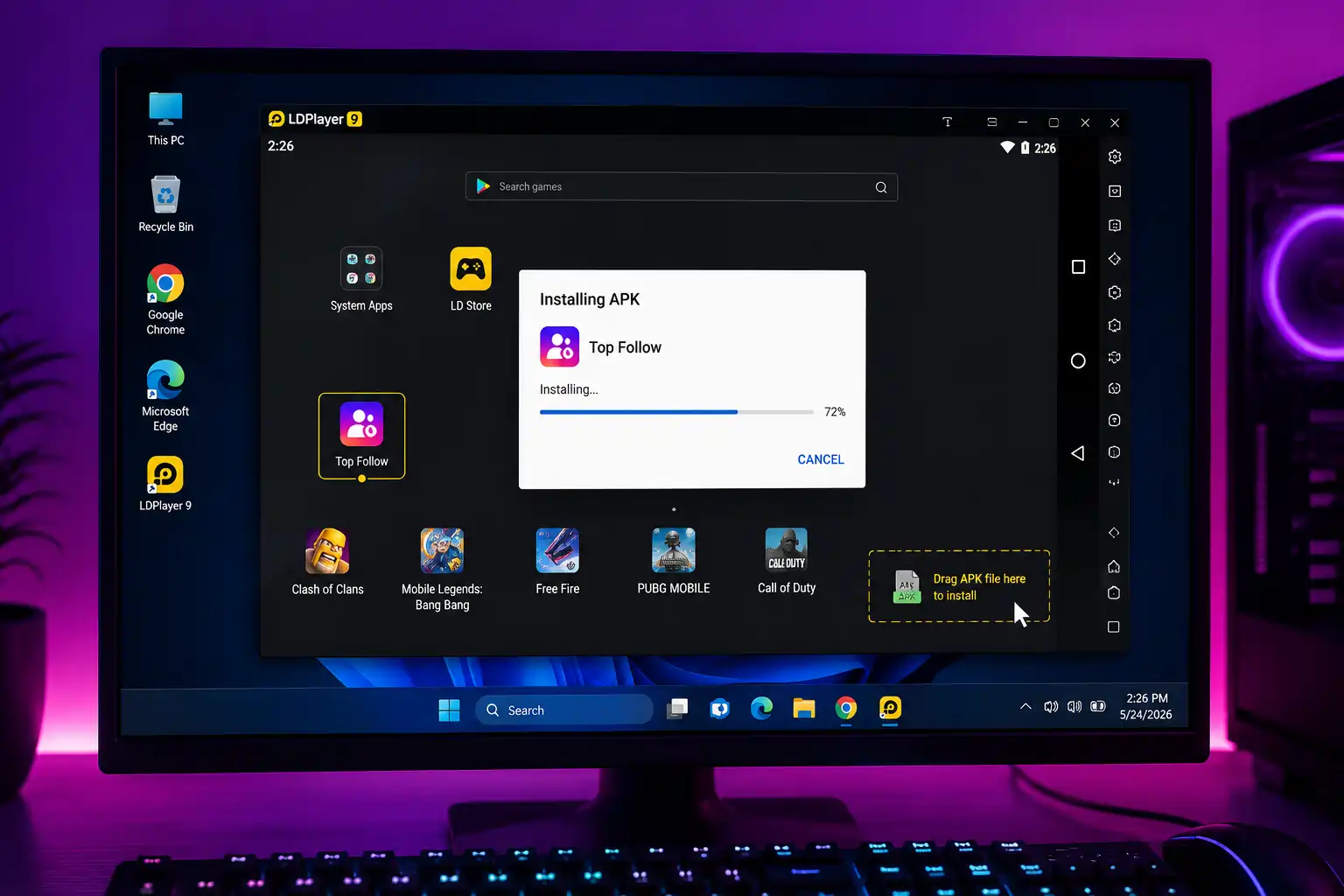
Simply drag the Top Follow APK from your PC desktop into the LDPlayer window. An install prompt appears automatically.
- Confirm installation
Tap Install in the popup. Top Follow appears in your LDPlayer app list within seconds.
- Open and set up
Launch Top Follow, sign up, and connect a secondary Instagram account.
A reliable option for older PCs or Windows 7/8. The install process mirrors LDPlayer.
- Download NoxPlayer
Get it from bignox.com. Install and open it.
- Sign into Google Play Store
Log in with your Google account inside Nox.
- Install the APK
Click the APK icon on the Nox right sidebar, browse to your Top Follow APK, and confirm. Installs in under a minute.
- Launch and set up
Open Top Follow from the Nox home screen. Sign up using a secondary Instagram account.
| Component | Minimum | Recommended |
|---|---|---|
| OS | Windows 7 (64-bit) | Windows 10/11 |
| RAM | 4 GB | 8 GB or more |
| Processor | Intel/AMD dual-core | Intel Core i5 / Ryzen 5 |
| Storage | 5 GB free | 10 GB free |
| GPU | DirectX 11 compatible | Dedicated GPU preferred |
| Virtualization | VT-x / AMD-V enabled | Same |
| Mac | macOS 10.14+ | macOS 12+ (Apple Silicon via Rosetta) |
BlueStacks and LDPlayer require virtualization enabled in BIOS. Most PCs made after 2015 have this on by default.
Running it on a bigger screen is genuinely more comfortable for task-heavy sessions. You get everything the mobile app offers, plus some practical PC advantages:
Earn & Spend Coins
Complete follow and like tasks on a large screen. Easier to click through multiple tasks quickly.
Monitor Orders
Track active follower and like orders in a bigger window. Easier to read and manage at a glance.
Faster Task Sessions
Keyboard and fast mouse clicks let you complete task cycles noticeably quicker than on mobile.
Run Alongside Other Work
Keep Top Follow running in a window while working. No need to pick up your phone.
Paste Promo Codes
Copy-paste promo codes directly from your browser into the app – far easier than typing on a phone.
Multi-Instance
BlueStacks and LDPlayer support multiple virtual devices. Power users run two accounts side-by-side to earn coins faster.
Is the Emulator Safe?
BlueStacks, LDPlayer, and NoxPlayer are all established tools with millions of downloads. Download only from their official sites. Avoid “modified” emulator downloads from unknown sources – those can carry bundled adware.
Is the APK Safe?
Same rule as on mobile: download only from a source you trust. When unsure, scan the file with Windows Defender or VirusTotal before running it.
What About Your Instagram Account?
Use a secondary Instagram account inside the emulator for all tasks. Your main account only receives the followers you order – it never performs tasks. Order in small batches (100 – 200 at a time) to avoid triggering spam detection.
✅ Safe Practices
- Download emulator from its official site only
- Scan the APK with antivirus before installing
- Use a secondary account for all tasks
- Order followers gradually, not in bulk
- Keep main profile Public while ordering
⚠️ Things to Avoid
- Downloading emulator from random sites
- Using your main Instagram for tasks
- Running hundreds of tasks in one session
- Ordering thousands of followers overnight
- Ignoring antivirus warnings on the APK
BlueStacks Won’t Open – “Virtualization Not Enabled”
Restart your PC, enter BIOS (usually F2, F10, or Delete at startup), find “Virtualization Technology” or “VT-x / AMD-V”, enable it. Save and restart. BlueStacks should launch normally.
Top Follow APK Won’t Install in Emulator
The APK may be corrupted or incompatible with the emulator’s Android version. Download a fresh copy of the APK. Also update your emulator to its latest version – older builds sometimes reject newer APK files.
App Loads But Crashes Immediately
Allocate more RAM to your emulator – 2 – 3GB minimum for stable performance. Also try switching the renderer from OpenGL to DirectX (or vice versa) in the emulator’s display settings.
Followers Not Arriving After Placing Order
Confirm your Instagram profile is set to Public. Also verify your coin balance actually deducted – if not, the order never submitted. Retry with a stable internet connection.
Emulator Very Slow or Lagging
Close other applications. In emulator settings, reduce screen resolution and set CPU allocation to 2 cores. For consistently slow performance, switch from BlueStacks to LDPlayer – it uses significantly less CPU and RAM for non-gaming apps.
📎 Related Guides on APKTopFollow
- On a phone? See the Top Follow APK guide for Android – simpler install.
- iPhone user? Read Top Follow for iOS using ESign or AltStore.
- Free coins: Top Follow Promo Codes 2026 – updated weekly.
- Comparing tools: Best Instagram Follower Apps (2026).